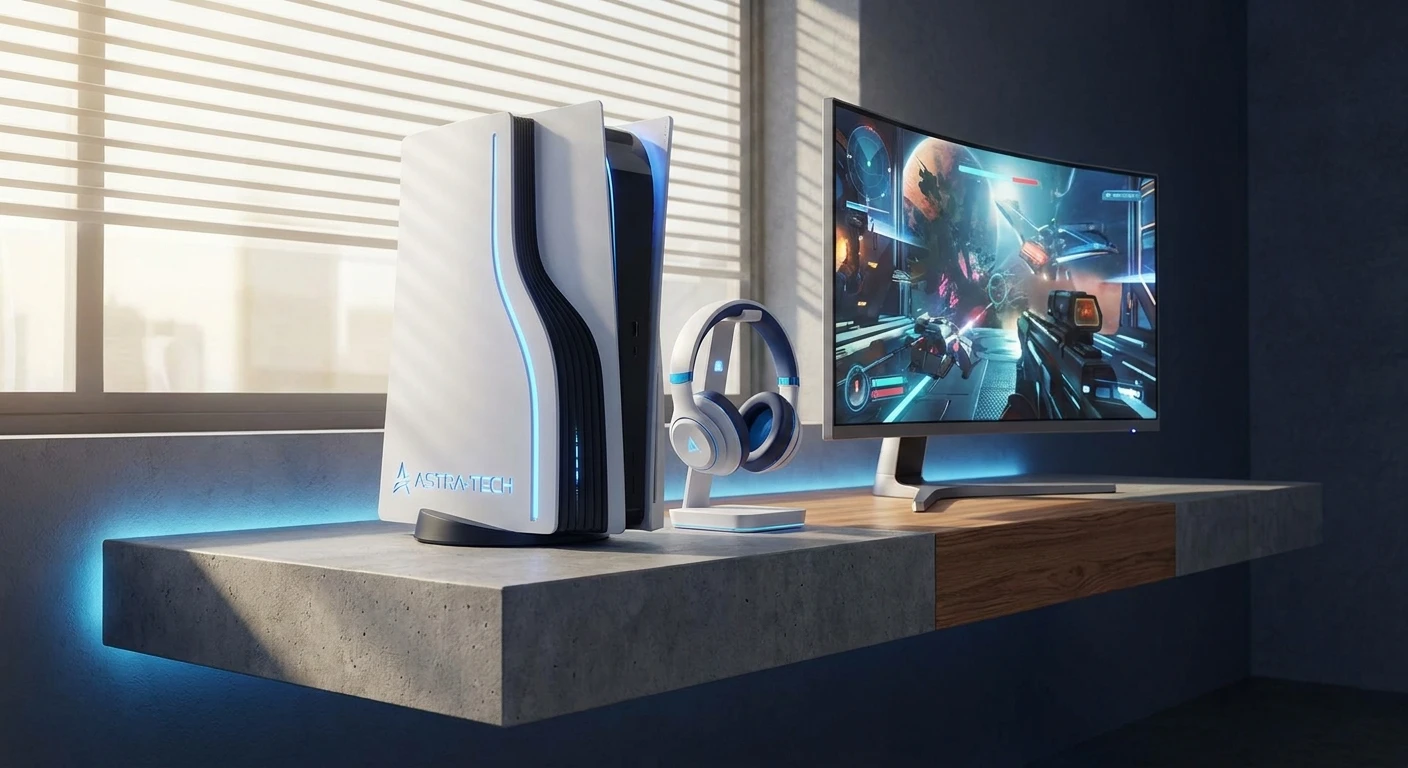
How to Connect Bluetooth Headphones to PS5: The Ultimate Guide
If you are trying to figure out how to connect bluetooth headphones to ps5, you have just landed in the exact right spot. Trust me, it is incredibly frustrating to buy a powerful next-generation console, grab your favorite high-end wireless earbuds, and realize the system just flat out refuses to pair with them natively. Our primary goal today is to walk through the exact workarounds, the best dongles, and the smartest setups to get your personal audio gear synced up with your console flawlessly.
Sitting in my apartment in Kyiv, I recently picked up a new console to pass the time. Here in Ukraine, when we have stable electricity, maximizing those gaming hours is a huge priority for me. Because I often play late at night, I want the absolute best audio immersion without waking up my neighbors or disturbing my family. I grabbed my trusty noise-canceling wireless earbuds, turned on the pairing mode, and hit a massive wall. Sony doesn’t natively support third-party wireless audio via standard Bluetooth connections right out of the box. They blocked it. So, I spent days testing every possible method to bypass this restriction, and I am going to share exactly what actually works.
Read also: How to connect bluetooth headphones to ps5 easily; Can PS4 Games Be Played On PS5? Complete Guide.
The Core Problem: Why Direct Connection Fails and What to Do
Sony limits standard Bluetooth audio on their consoles for a very specific technical reason: bandwidth interference. The DualSense controllers rely heavily on a proprietary Bluetooth connection to send inputs rapidly, receive haptic feedback instructions, and maintain adaptive trigger resistance. If the console also had to broadcast a high-bitrate audio signal to your commercial headphones over that same crowded 2.4 GHz frequency, you would likely experience terrible controller lag, random disconnects, and massive audio delays.
However, we have brilliant workarounds. The primary solution is using an external USB audio transmitter. This takes the processing load off the console’s internal Bluetooth card and acts as a dedicated bridge to your headset. A massive value proposition here is that a good transmitter provides ultra-low latency and doesn’t mess with your controller signals. Let me give you a couple of examples. If you use a generic cheap dongle, you might get a half-second delay on gunfire sounds. But if you use an aptX Low Latency USB-C transmitter, the audio sync is virtually instantaneous, matching the performance of expensive, officially licensed headsets.
Here is a quick breakdown of your connection options and their performance metrics:
| Connection Method | Expected Latency | Audio Quality |
|---|---|---|
| Premium aptX USB Transmitter | Virtually None (~40ms) | Excellent (Lossless) |
| Smart TV Bluetooth Link | High (~150ms – 200ms) | Average (Compressed) |
| Wired 3.5mm into DualSense | Zero (0ms) | Good (Depends on headset) |
Before you begin the process of linking your gear, you need to gather a few essential items. Here is exactly what you should prepare:
- A high-quality USB Bluetooth audio transmitter (preferably one supporting aptX Low Latency or aptX Adaptive).
- Your fully charged wireless earbuds or over-ear headset.
- A USB-C to USB-A adapter, just in case you need to use the rear ports on the console instead of the front.
- Your DualSense controller to navigate the user interface menus.
The Origins of Console Audio
To really grasp why we have to jump through these hoops, we have to look back at the history of console audio. In the early days, you either played sound through massive television speakers or you sat three feet away from a CRT monitor with a wired headset plugged directly into the TV’s headphone jack. Consoles didn’t handle personal audio at all. The interface was strictly dedicated to pushing raw sound data through RCA cables.
The Evolution of Wireless Gaming Gear
Eventually, the gaming industry moved toward wireless freedom. During the era of the PS3 and PS4, we saw the introduction of bulky RF (radio frequency) dongles. These massive USB sticks used dedicated 2.4 GHz channels to beam audio to specific gaming headsets. The technology was raw, battery life was horrible, and the headsets weighed a ton. Bluetooth existed, but it was incredibly slow, making it useless for gaming where split-second audio cues matter. Gamers demanded better, lighter, and more versatile equipment, leading to the massive consumer boom of high-end commercial wireless headphones.
The Modern State of PS5 Audio in 2026
Fast forward to the year 2026, and our personal tech ecosystems are entirely wireless. We expect our premium AirPods, Sony WH-1000XM series, or Sennheisers to connect to absolutely everything seamlessly. Even though standard Bluetooth protocols have massively improved, reaching version 5.4 with incredible data speeds, console manufacturers still prioritize extreme stability over universal compatibility. They prefer you buy their proprietary 3D audio headsets. Thankfully, the third-party accessory market has evolved brilliantly, creating incredibly tiny, powerful USB-C transmitters that trick the console into thinking a wired USB audio interface is connected, giving us the absolute freedom we crave.
Understanding Bluetooth Codecs and Latency
Let us talk about the hard science behind wireless sound transmission. When audio leaves your console, it has to be compressed, beamed through the air, received by your headset, decompressed, and played through the drivers. This entire process takes time, known as latency. Standard SBC codecs (Subband Coding) are the default fallback for most wireless gear, and they are terribly slow, often creating delays of up to 250 milliseconds. In a fast-paced shooter, you will see the muzzle flash a quarter of a second before you hear the gunshot. This completely breaks immersion and ruins your reaction time.
The 2.4 GHz vs. Bluetooth Dilemma
Dedicated gaming headsets use a completely different standard. They utilize a custom 2.4 GHz radio frequency that doesn’t bother compressing and decompressing the audio nearly as much, providing near-zero latency. To bridge the gap with commercial Bluetooth gear, modern transmitters use advanced algorithms like aptX Low Latency. To understand how fascinating this technology is, check out these scientific transmission facts:
- The threshold for human perception of audio-visual delay is roughly around 40 to 50 milliseconds; anything faster feels instantaneous.
- Standard Bluetooth uses frequency-hopping spread spectrum (FHSS), changing channels up to 1,600 times per second to avoid interference with your Wi-Fi routers.
- aptX Low Latency specifically compresses the audio data packets into smaller, continuous streams rather than large bursts, maintaining a strict 40ms end-to-end delay.
- High-Resolution Audio codecs like LDAC require bitrates up to 990 kbps, which are fantastic for music but heavily prone to dropping packets when your controller is also transmitting data nearby.
Your Actionable 7-Step Connection Plan
Now, let us get your gear actually connected. Follow this precise, step-by-step menu, and you will be listening to crisp, wireless game audio in just a few minutes. I have broken this down into the most logical sequence possible.
Step 1: Choose the Right USB Bluetooth Transmitter
Your first move is acquiring a dedicated transmitter. Do not buy a cheap data dongle meant for a PC keyboard. You specifically need a “USB Audio Bluetooth Transmitter.” Look for one that advertises aptX Low Latency compatibility. Brands like Avantree, Creative, or Skull & Co. make fantastic, reliable options.
Step 2: Plug the Adapter into the Console
Take your brand-new transmitter and plug it into the console. The system has a high-speed USB-C port on the front, which is perfectly placed for this. If your adapter is older and uses a wide USB-A plug, use the standard ports on the back. Make sure it is seated firmly.
Step 3: Put Your Headphones in Pairing Mode
Grab your wireless headset. Make sure it is fully disconnected from your phone, tablet, or PC to avoid any handshake confusion. Hold down the power or pairing button until the LED light starts flashing rapidly. The exact method varies by brand, but usually, a long press of the power button from an “off” state does the trick.
Step 4: Sync the Transmitter and the Headset
Press and hold the pairing button on your USB transmitter. It will start flashing to indicate it is searching. Bring your headphones close to the console. Within about 5 to 10 seconds, the flashing lights on both devices should turn solid. They have successfully found each other and established a secure handshake.
Step 5: Configure Output Settings on the Console
Grab your DualSense controller, press the PS button, and navigate to the gear icon for Settings. Scroll down to “Sound,” then select “Audio Output.” Change the “Output Device” to “USB Headset.” The system now recognizes your Bluetooth transmitter as an official external audio card.
Step 6: Adjust Microphone Input and Volumes
If your transmitter supports two-way audio (a feature often called FastStream or HFP), you can also use your headset’s built-in microphone. Go to the “Microphone” tab in the Sound settings and switch the Input Device to the USB adapter. Be warned: using Bluetooth for both high-quality audio and microphone chat simultaneously usually degrades the game sound to a flat, mono telephone-quality feed due to bandwidth limits. For the best experience, keep the input device set to the microphone built into your DualSense controller.
Step 7: Test the Audio with a Fast-Paced Game
Boot up a game that requires quick reflexes, like a fast shooter or a rhythm game. Shoot a weapon or perform a quick action and listen closely to the audio sync. If the sound matches the on-screen action perfectly, your setup is flawless. If there is a slight delay, your headset might be defaulting to a slower codec, but it should still be highly playable for casual gaming.
Myths and Reality About Console Audio
There is a massive amount of misinformation floating around forums and social media regarding wireless audio. Let us clear up the confusion right now.
Myth: Sony blocked Bluetooth solely out of greed so they could sell more of their official Pulse 3D headsets.
Reality: While selling accessories is absolutely profitable, the block is primarily a functional engineering decision. The internal Bluetooth bandwidth is strictly reserved for the complex data streams of up to four DualSense controllers simultaneously. Adding standard audio profiles would crash the controller inputs.
Myth: You can just use a cheap $5 PC Bluetooth data dongle to connect your headphones.
Reality: Standard PC data dongles rely on Windows or Mac operating systems to install audio drivers and handle the processing. The console OS lacks these generic drivers. You must buy an “Audio Transmitter” that handles all the audio processing on the dongle itself, presenting itself to the console simply as a generic USB sound card.
Myth: You can jailbreak the console firmware to unlock the hidden internal Bluetooth audio menu.
Reality: The current system architecture heavily encrypts and locks the hardware layer. Attempting this will brick your console and void your warranty immediately.
Frequently Asked Questions
Can I use AirPods with the PS5?
Yes, absolutely. By using a USB audio transmitter, your console simply outputs sound to the dongle, and the dongle sends it straight to your AirPods exactly like it would to any other wireless earbuds.
Do I need a Type-C or Type-A dongle?
Either will work fine. Type-C is convenient because it plugs directly into the front panel. If you use Type-A, you can plug it into the back ports, which keeps the front of your console looking clean and tidy.
Will the microphone work via a Bluetooth adapter?
It depends on the adapter. Some support voice chat protocols, but activating the mic over standard Bluetooth drastically drops the game audio quality. I strongly recommend using the fantastic microphone built right into your controller for chat instead.
Is there any input lag using Smart TV Bluetooth?
Yes, a massive amount. If you connect your headphones directly to your modern Smart TV’s built-in Bluetooth, the TV has to process the HDMI audio from the console, encode it, and send it. You will almost certainly experience a noticeable lip-sync delay.
Does the DualSense controller have a Bluetooth transmitter?
No, the controller receives Bluetooth data from the console and has a 3.5mm analog audio jack. It cannot transmit audio wirelessly to your headphones. You can plug a wired headset into it, though.
Why does my audio sound muffled?
If your audio suddenly sounds like you are talking through a tin can, your headset has switched into “Hands-Free Profile” (HFP) mode. This happens when the microphone is activated. Go to your console settings and change the microphone input back to the controller.
Can I connect two pairs of headphones at once?
Some premium USB audio transmitters feature dual-streaming capabilities. You can put the dongle into pairing mode twice and link two separate sets of headphones, making it perfect for late-night local co-op gaming sessions.
Can I control the volume from the headphones?
Usually, yes. The volume controls on your headset will adjust the internal amplifier of the headphones. You can also adjust the master output volume directly from the console’s quick menu.
Is 3D Audio supported over a Bluetooth dongle?
Yes! The console processes its proprietary Tempest 3D AudioTech at the system level before sending it out. As long as your USB dongle receives the stereo signal, you will experience the full spatial audio effect.
Conclusion
Mastering how to connect bluetooth headphones to ps5 doesn’t have to be a headache. By bypassing the native restrictions with a high-quality, low-latency USB transmitter, you can bridge the gap between premium personal audio and incredible next-generation gaming. The setup is fast, the audio is crystal clear, and the freedom of ditching those annoying wires is entirely worth the small investment. Grab a solid transmitter today, follow the pairing steps, and dive back into your favorite digital worlds with the perfect soundtrack.



Leave a Reply