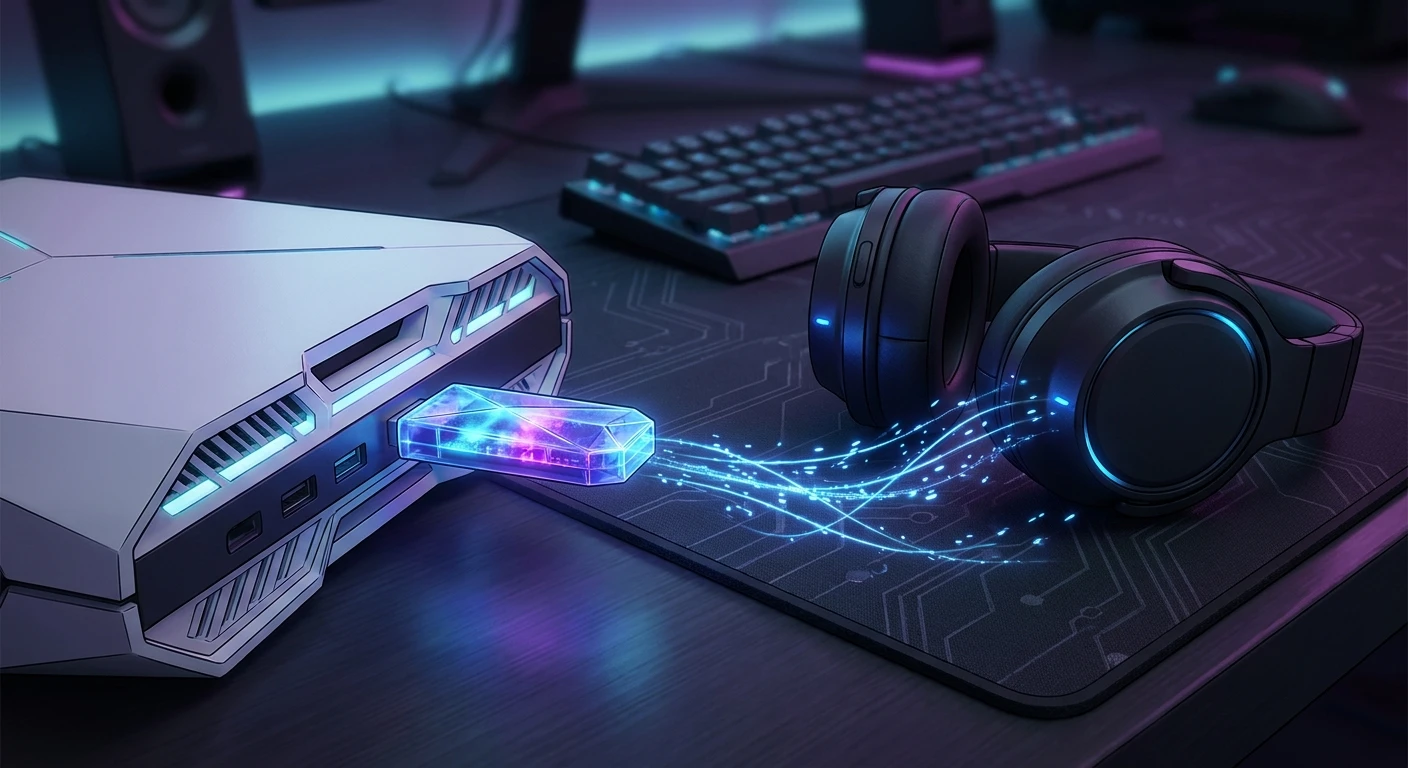
How to connect bluetooth headphones to ps5 smoothly and effectively
If you are trying to figure out how to connect bluetooth headphones to ps5, you are definitely not alone in this frustrating quest. We all know that sudden urge to jump into a midnight gaming session without waking up your entire family or your annoying upstairs neighbors. I recall a chilly evening back in Kyiv, during one of those unpredictable grid blackouts that forced me to completely rethink my electronics setup. I was sitting in my living room, illuminated only by the faint glow of a battery-powered camping lamp and my portable screen, desperately needing the immersive sound of my favorite wireless over-ear cans. The sheer silence of the apartment was absolutely deafening, and I just wanted to escape into my digital world to unwind. The massive problem? Sony makes getting your standard wireless gear synced up surprisingly tricky right out of the box.
Finding a reliable, fast way to pair basic wireless gear became my absolute obsession that very night. You buy this incredibly powerful, futuristic gaming machine, but it stubbornly refuses to talk to your everyday wireless earbuds natively. Why does it act like this? Well, it all comes down to aggressive bandwidth priorities and dedicated controller communication logic. Fortunately, bypassing these stubborn restrictions is totally doable and relatively painless once you know the secret. You just need the right tools, a little bit of patience, and a solid understanding of how the console actually handles its audio outputs. Let me explain exactly how you can establish a flawless wireless audio setup, keeping those crisp soundscapes strictly in your ears and entirely out of the living room air.
Getting past the console’s native restrictions brings massive, immediate benefits to your daily entertainment routine. By establishing this dedicated link, you entirely eliminate wire clutter, gain the pure freedom to walk across the room to grab a snack during a long loading screen, and unlock the amazing ability to use the exact same premium audio gear you already take on your morning commutes. The core value proposition here is incredibly simple: maximum flexibility without sacrificing your audio fidelity. For example, if you already own high-end active noise-canceling headphones, you can block out annoying external street noise completely while gaming. As another great example, using lightweight fitness earbuds allows you to play intensely physical VR titles without heavy, sweat-inducing earcups weighing you down and ruining your momentum.
The primary hurdle is that the system strictly reserves its internal wireless bandwidth for the DualSense controllers. If the system freely allowed open audio connections, you would experience massive, game-ruining input lag when pressing buttons during crucial fights. To get around this intelligently, you have to use a dedicated transmission method.
Here is a quick breakdown of how different gear interacts with the system once you apply these smart workarounds:
| Headphone Type | Best Connection Method | Latency Expectation |
|---|---|---|
| Standard Earbuds (AirPods) | USB-C Audio Transmitter | Medium (Noticeable in fast shooters) |
| Premium Wireless (Sony WH) | USB-A Bluetooth Dongle | Low (Great for deep RPGs) |
| Gaming-Specific Headsets | Included 2.4GHz USB Receiver | Zero (Flawless synchronization) |
If you want to start right away, here is a clear overview of what you actually need to do to make this entire concept work flawlessly:
- Acquire a high-quality USB audio transmitter that explicitly supports low-latency codecs.
- Plug the transmitter directly into one of the console’s USB ports (the front Type-C port is usually ideal for newer, smaller adapters).
- Put your audio device into pairing mode and firmly hold the sync button on the transmitter until they talk to each other and lock in the signal.
By following this specific logic, you completely bypass the internal wireless card, forcing the audio through the fast USB bus directly to your ears. It is a brilliant, foolproof workaround that just works.
Origins of Console Audio Restrictions
To truly understand why things are set up this frustrating way, we have to trace the origins of console audio architecture. In the early, nostalgic days of gaming, absolutely everything was strictly wired. You plugged a chunky plastic headset directly into your bulky tube TV or an external amplifier, and that was that. When tech manufacturers finally started cutting the cord and moving toward wireless freedom, they quickly realized that sending complex, uncompressed audio signals through the air required massive amounts of stable data. Engineers decided early on that controller responsiveness—making sure your character actually jumps the exact millisecond you press the heavy plastic button—was far more important than adopting open audio standards. They purposely locked the gates.
Evolution of Wireless Gaming Peripherals
Over the last decade, the evolution of wireless gaming took a very distinct, specialized turn. Instead of relying on universal consumer standards, gaming companies aggressively started developing proprietary 2.4GHz radio frequency technology. This dedicated lane allowed massive amounts of rich audio data to fly back and forth without interfering with delicate controller inputs. It created a massive split market: general consumer audio gear on one side, and highly specialized, glowing “gaming” headsets on the other. This expensive divide unfairly forced gamers to buy multiple pairs of pricey gear depending on whether they were casually listening to music on their phone or intensely fighting virtual bosses on their television screen.
Modern State of Console Connectivity
Today, even as we smoothly navigate the hyper-advanced tech landscape in 2026, the modern state of console connectivity remains remarkably stubborn and locked down. The actual physical hardware inside the machine is theoretically highly capable of broadcasting universal audio signals, but the strict firmware completely forbids it to protect overall system stability. The software engineers stubbornly refuse to compromise the core interactive experience. That means the ecosystem is heavily locked down, tightly regulated, and completely dependent on certified third-party accessories. You simply cannot just open a settings menu and pair any random device you found at the local electronics store. You have to play by their specific architectural rules, heavily relying on external transmitters to bridge the digital gap between your everyday tech and your premium gaming station.
The Science of Audio Latency Explained Simply
Let me explain the actual science behind why your audio might infuriatingly lag behind the fast-paced on-screen action. Latency is simply the literal delay between the console generating a digital sound and that exact sound physically hitting your eardrums. In a highly competitive environment, even a tiny delay of a few milliseconds can completely ruin your spatial situational awareness. When you rely on standard, outdated wireless protocols, the digital audio file has to be compressed by the console, beamed through the air, received by the headset, unpacked, and converted back into analog sound waves. This heavy computational lifting simply takes time. If you use the wrong cheap codec, you might see a massive explosion on screen and hear the actual loud boom half a second later, which ruins the immersion.
Understanding Transmission Protocols
Not all transmission protocols are created equal, and knowing the difference saves you money and frustration. The standard SBC codec, which almost all basic budget devices use, is notoriously slow and inefficient. It acts exactly like a crowded city highway where data packets are constantly stuck in traffic. On the exact flip side, aptX Low Latency is like an exclusive VIP fast lane, ensuring the audio data reaches its final destination almost instantly. Understanding this massive technical difference is absolutely crucial when buying adapters.
Here are a few scientific facts regarding wireless audio transmission that you need to grasp:
- Standard connections mostly operate on the heavily crowded 2.4GHz frequency band, which is also unfortunately used by your Wi-Fi router, kitchen microwave, and annoying smart home devices.
- Human hearing can easily detect irritating audio-visual desynchronization when latency exceeds roughly 40 to 50 milliseconds.
- Data packets transmitted over basic codecs are heavily compressed, actively stripping away high and low frequencies, which drastically degrades the perceived realistic soundstage of your environment.
- Advanced premium transmitters use smart multipoint broadcasting, constantly searching for the clearest frequency channel to actively avoid packet loss and audio stuttering.
Knowing these harsh technical realities helps you make much smarter, informed decisions when carefully assembling your gaming station, ensuring you never miss a critical audio cue again.
If you want a totally bulletproof method to achieve this audio harmony, follow this comprehensive, foolproof step-by-step plan. Think of it as your clear, personal roadmap to absolute audio freedom.
Step 1: Choose the Right Transmitter
First, you need to purchase a USB adapter that specifically advertises aptX Low Latency support on the box. Do not buy a generic computer dongle; they lack the necessary audio processing chips and will simply fail to register.
Step 2: Prepare the Console Ports
Turn on your machine and locate the available USB ports. The front-facing USB-C port is usually the absolute best option for modern transmitters, as it provides highly stable power and stays completely clear of rear cable clutter.
Step 3: Insert the Adapter
Plug your carefully chosen transmitter firmly into the port. You should immediately see an LED indicator light flashing, aggressively signaling that it has received power and is ready for pairing mode.
Step 4: Enable Headphone Pairing Mode
Grab your favorite earbuds or over-ear cans. Hold down the power or sync button until the indicator light flashes rapidly. This actively puts them in search mode, looking for a host device.
Step 5: Synchronize the Devices
Press and hold the pairing button on your newly installed USB transmitter. The two devices will search for each other. Within about ten short seconds, the flashing lights should turn totally solid, indicating a highly successful digital handshake.
Step 6: Configure System Output Settings
Grab your controller and navigate straight to the main dashboard. Go to Settings, then Sound, then Audio Output. Change the Output Device directly to “USB Headset” (it will conveniently read the adapter as a generic headset).
Step 7: Adjust Volume and 3D Audio
Finally, stay in the Audio Output menu to carefully fine-tune your volume levels. You can also toggle the fantastic 3D Audio feature on or off. Even though you are using a clever workaround, the 3D spatial processing still travels through the USB port perfectly. Make sure you test the spatial sound in a vibrant game to verify everything is working smoothly. The deep immersion is absolutely unreal once dialed in correctly.
There is a lot of bizarre misinformation floating around online about this entire process. Let us instantly clear up the stubborn confusion.
Myth: You can just download a quick software update to unlock native wireless pairing on the console.
Reality: The physical hardware restricts this at a fundamental firmware level to heavily prioritize controller inputs. No simple software patch will ever enable universal audio pairing directly.
Myth: Using a third-party USB dongle permanently damages the console’s internal audio processing unit.
Reality: USB audio output is an entirely standard, officially supported hardware feature. The robust system naturally routes sound to any recognized USB accessory without causing any hardware stress whatsoever.
Myth: Third-party wireless connections completely disable the system’s incredible 3D spatial audio features entirely.
Reality: The complex spatial processing happens internally before the sound is ever sent to the USB port. As long as you have the 3D audio setting actively toggled on, your standard gear will process the spatial cues highly accurately.
Myth: Smart televisions can simply act as a flawless wireless bridge for your gaming audio.
Reality: Routing game sound away from the console, slowly through the television hardware, and then finally to your ears introduces massive, entirely unplayable latency delays.
FAQ: Do AirPods work natively?
No, standard Apple earbuds require a dedicated third-party USB transmitter to function smoothly with the system. They will not connect natively under any circumstances.
FAQ: Will I experience annoying audio lag?
It entirely depends on your chosen adapter. High-quality transmitters equipped with aptX Low Latency technology virtually eliminate any noticeable delay, keeping actions perfectly synced.
FAQ: Can I use the built-in microphone?
Usually, standard Bluetooth adapters strictly only transmit outward audio. For functional voice chat with your squad, you might still need to rely directly on the microphone smartly embedded right in your controller.
FAQ: Do generic PC dongles work?
Generally, basic PC data dongles absolutely do not contain the correct audio processing drivers inherently required by the console operating system. Stick to dedicated audio transmitters.
FAQ: Is 3D audio definitely supported via USB?
Yes, the powerful spatial audio engine works flawlessly over a standard USB connection, delivering incredible directional sound directly to your standard headphones.
FAQ: Does doing this void my warranty?
Absolutely not. Plugging in a completely standard USB peripheral is perfectly safe, totally expected, and completely allowed by the manufacturer guidelines.
FAQ: Can I successfully pair two headsets at once?
Only if your specific, premium USB transmitter physically features dual-link capabilities built into the hardware. The console itself absolutely will not handle dual audio streams natively.
Getting absolutely everything set up properly might honestly seem highly daunting initially, but carefully following this tested strategy guarantees total success. You no longer have to suffer through complete silence or disturb your roommates. Now simply grab your best gear, plug in your new adapter, and enjoy a completely wireless, highly immersive gaming session tonight!



Leave a Reply