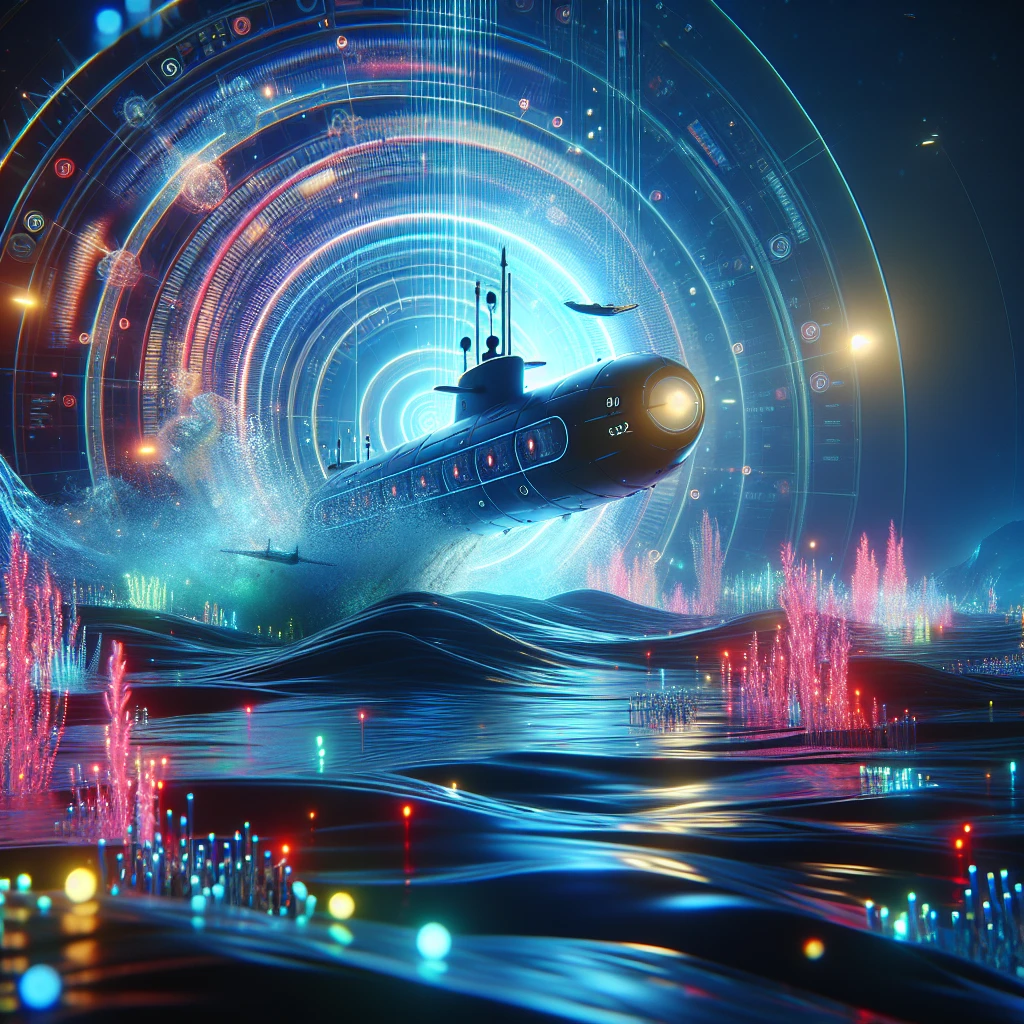
Complete Guide to Subnautica Cheats
Ever found yourself staring down the terrifying jaws of a Reaper Leviathan with absolutely nothing but a hand scanner and pure panic? Yeah, me too. That specific flavor of aquatic anxiety is exactly why mastering subnautica cheats can completely flip your entire experience on Planet 4546B. Let’s be entirely real for a second—sometimes you just want to build a massive, sprawling underwater base without grinding for titanium scraps for four straight hours. Back in the winter, during those long, dark evenings in Kyiv when the power grid was playing a relentless game of hide-and-seek, I heavily relied on single-player offline games to keep my sanity intact. Subnautica was my absolute go-to escape. But honestly, losing three hours of painstaking base-building progress because my character drowned in a tiny, confusing cave system was just too much extra stress. That is the exact moment I cracked open the developer console and never looked back. Knowing how to manipulate the game engine doesn’t ruin the fun; it actually hands you the director’s chair. You can freely test out wild base designs, explore the darkest, most terrifying oceanic trenches without the constant fear of losing your gear, or just spawn twenty Prawn Suits simultaneously just for the laughs. I am going to walk you through exactly how to activate these developer commands, why they are so incredibly useful for both new and veteran players, and how you can seamlessly use them to tailor your deep-sea adventure exactly to your current mood.
The Core Mechanics of the Developer Console
Before you can start spawning infinite resources or teleporting across the map, you need to understand how the console actually functions within the game. The developer console is essentially a hidden text-entry overlay that communicates directly with the game’s core programming. It bypasses the standard gameplay loop—gathering, crafting, surviving—and allows you to trigger specific scripts instantly. This is phenomenally useful for several reasons. Imagine you are driving your shiny new Seamoth near the Aurora, and suddenly a geometry glitch causes your vehicle to clip straight through the seafloor, falling into the endless digital void. Instead of throwing your keyboard across the room, you can simply pull up the console and spawn a replacement.
Here is a breakdown of some of the most popular commands and how they function:
| Command Syntax | Primary Function | Best Use Case Scenario |
|---|---|---|
nodamage |
Makes the player completely invincible to all damage types. | Exploring highly dangerous biomes like the Crash Zone or Dunes. |
fastbuild |
Reduces base module construction time to zero. | Rapidly prototyping large-scale underwater habitats. |
item [name] [amount] |
Spawns specific items directly into the player’s inventory. | Skipping tedious resource grinds for basic materials like Copper. |
invisible |
Makes the player completely undetectable to aggressive fauna. | Scanning hostile leviathans up close without being eaten. |
The value proposition of utilizing these commands is massive. Let’s say you want to create a mega-base in a specific biome, but you also want to keep the standard survival mechanics like hunger and thirst active (which Creative Mode normally disables). Using the console allows you to mix and match mechanics. You can use the nocost command to build for free, then turn it off to resume normal survival gameplay.
To get started, follow these exact steps to unlock the interface:
- Press the F3 key on your keyboard to open the hidden system menu overlay in the upper left corner.
- Press the F8 key to free your mouse cursor so you can actually click on the screen elements.
- Uncheck the small box labeled ‘Disable Console’ at the top left to enable text typing.
- Press Enter or the Tilde (~) key to bring up the gray text input box at the bottom left of your screen.
Origins of the Developer Console
To fully appreciate the power you hold when typing into that little gray box, we have to look back at the history of the game’s development. Unknown Worlds Entertainment built this game iteratively, heavily relying on an Early Access model starting way back in 2014. During those early alpha and beta phases, the game was riddled with bugs, missing textures, and broken spawn points. The developers needed a rapid way to test different biomes, creature behaviors, and vehicle physics without playing the game from scratch every single time. Thus, the command console was born as a purely internal diagnostic tool.
Evolution of Player Creativity
As the Early Access period continued, players inevitably figured out how to access this internal tool. Instead of patching it out, the developers realized that the community was using these commands to build spectacular things that weren’t originally thought possible. Players were constructing massive bases that breached the ocean surface, creating custom aquariums, and organizing leviathan fights. The console shifted from a debugging necessity to a core feature of the community’s creative expression. The developers recognized that in sandbox games, giving players the ultimate freedom to break the rules often leads to the highest levels of engagement and long-term loyalty.
The Modern State of Gameplay Tweaks
Even now in 2026, long after the game’s final official content updates, the community still actively relies on these legacy debug features. Modern gaming has largely shifted toward live-service models where everything is locked down and monetized, making the raw, unfiltered access of a local command console feel like a breath of fresh air. It represents an older philosophy of game design where the player actually owns their experience. Whether you are modding the game or just using vanilla commands, the ability to tweak the parameters of the simulation keeps the gameplay endlessly fresh.
Understanding the Unity Engine Architecture
When you input a command, you aren’t just typing words; you are directly interacting with the Unity Engine’s backend asset management system. Every single item, creature, and biome in the game has a specific alphanumeric identifier known as an Entity ID. When you type an item command, the engine queries its asset database, locates the corresponding 3D model and its associated physics scripts, and then executes a memory allocation protocol to render that object dynamically in your current coordinate space.
Command Syntax and Memory Allocation
This process is fascinating but also requires a bit of caution. The game engine is calculating volumetric water displacement, physics interactions, and lighting dynamically. If you misuse the console, you can easily push the engine past its absolute limits. Here are a few technical facts to keep in mind regarding how the engine handles these requests:
- The Unity Engine processes developer commands directly through its internal debug log, meaning syntax errors will simply be ignored rather than crashing the game.
- Spawning excessive physical items (like dropping 500 titanium ingots at once) can cause severe framerate drops because the engine tries to calculate collision physics for every single individual object simultaneously.
- Entity string IDs are strictly case-sensitive in the backend database, though the frontend console parser often auto-corrects minor capitalization errors for ease of use.
- When using teleportation commands, the game must rapidly unload your current biome’s assets from RAM and load the new biome, which is why there is usually a massive stutter when warping across the map.
Step 1: Enabling the Interface
To really master the game, you need a structured approach to using these tools. Your first step is getting comfortable with the interface toggle. Sometimes, major game updates reset your settings, meaning you will need to repeat the F3 and F8 unchecking process. Always ensure your game is paused (if playing offline) when manipulating the system menu to avoid being attacked while your mouse cursor is detached.
Step 2: Mastering Basic Survival Commands
Survival is the core mechanic, but sometimes you just want to focus on exploration. If your oxygen meter is running low and you are trapped inside a shipwreck, simply typing oxygen will give you an infinite air supply. Similarly, typing food or water will instantly maximize your hunger and thirst meters, acting as a quick digital snack so you can keep entirely focused on your current task.
Step 3: Advanced Resource Spawning
Instead of swimming around for hours looking for limestone chunks, use the resource commands. The syntax is highly specific. Typing item copper 5 will drop five pieces of copper directly into your inventory. If your inventory is full, the items will spawn directly in front of you and fall to the seafloor. Memorizing the exact item names (like ‘quartz’, ‘titanium’, or ‘glass’) drastically speeds up your crafting workflow.
Step 4: Base Building Acceleration
Building should be fun, not a chore. Before you start placing corridors and multipurpose rooms, type nocost. This entirely removes the resource requirement for using the Habitat Builder. Pair this with the fastbuild command, and you can construct a massive, multi-level research facility in under ten minutes. Just remember to type the commands again when you are finished to toggle them back off.
Step 5: Teleportation and Exploration
The map is huge, and swimming is slow. The warp commands are your best friend here. Typing warp [x] [y] [z] teleports you to specific coordinates. If you don’t know the coordinates, you can use location names. For example, typing goto aurora or goto gun instantly teleports you to those major landmarks. If you get hopelessly lost, typing warpme instantly teleports you back to the last base or vehicle you were inside.
Step 6: Vehicle Management and Upgrades
Vehicles are prone to destruction, especially when leviathans are involved. You can instantly replace lost tech by typing spawn seamoth, spawn exosuit, or sub cyclops. Need upgrades? You can spawn those modules directly into your inventory. If your Cyclops is running out of juice, the noconsumption command ensures your power cells never drain, letting you cruise the ocean depths indefinitely.
Step 7: Reverting to Standard Play
The greatest part about this system is its flexibility. Once you have built your base or recovered your lost gear, you can simply save your game, quit to the main menu, and reload. Restarting the session automatically disables most of the active toggle commands like invincibility or infinite oxygen, returning you to the pure, terrifying survival experience just as the developers originally intended.
Myths & Reality
Myth: Using the console will immediately and permanently ban you from the game.
Reality: The game is strictly a single-player offline experience. There are absolutely no server police, no multiplayer anti-cheat software, and bans literally do not exist. You are free to play however you see fit.
Myth: Entering a single command will permanently corrupt your save file.
Reality: Commands act as temporary modifiers for your current active session. Quitting and reloading the game resets the vast majority of environmental and player state modifiers back to their default parameters safely.
Myth: You can absolutely never earn any more Steam or console achievements once you open the developer overlay.
Reality: While it is true that achievements are disabled for the specific session in which a command is used, simply saving, restarting the application, and loading the save without opening the console will re-enable achievement tracking normally.
How do I spawn a Cyclops?
Because the Cyclops is a massive entity, you cannot use the standard item command. You must specifically type sub cyclops while outside in open water with plenty of vertical clearance.
Can I change the time of day?
Yes, absolutely. If you are terrified of the dark ocean night, simply type day to instantly shift the global lighting to high noon. You can also type night if you prefer the bioluminescence.
What is the exact command for infinite power?
Typing nocost makes everything free, but typing noconsumption stops your vehicles, tools, and bases from draining their battery and power cell reserves.
Does the nocost command affect vehicle upgrade fabricators?
Yes, while active, the command applies to every single fabrication unit in the game, including the modification station, vehicle upgrade console, and the internal Cyclops fabricator.
How do I cure the Kharaa infection instantly?
If you want to bypass the story progression entirely, you can simply type the cure command, which will instantly remove the glowing green pustules from your character’s hands and alter the world state.
Can I disable the heavy atmospheric fog?
Yes. The visual fog can sometimes make navigation difficult. Typing fog will toggle the volumetric fog rendering off, allowing you to see massive distances both above and below the water, though it makes the game look a bit unnatural.
Is there a reliable map command?
No, there is no built-in mini-map command because the game doesn’t render one. However, you can press F1 to see your current X, Y, and Z coordinates, which functions as a numerical mapping system.
Conclusion
Having the ability to alter the very fabric of Planet 4546B completely transforms how you approach the game. Whether you are utilizing these tools to fix a frustrating physics bug, skip a tedious resource grind, or simply unleash your architectural creativity without boundaries, understanding the developer console is a massive game-changer. The ocean is terrifying enough without having to worry about arbitrary limitations. So next time you boot up your save, don’t be afraid to press F3, take control of the simulation, and build the ultimate deep-sea empire. Grab your keyboard, punch in those commands, and show the leviathans who actually runs this ocean!
Leave a Reply